
For suppliers doing business with KeHE, revenue leakage rarely occurs due to a bad product. It happens because of deductions and the gap between what suppliers think they owe and what KeHE actually took.
K-Solve, the financial account tool embedded in the KeHE CONNECT Supplier portal, is where those deductions are stored. Yet many suppliers only log in to dispute a charge after it has already become a reconciliation headache.
This guide is built directly from KeHE's internal training materials, not from search summaries. The access paths, fee structures, and dispute workflows below reflect exactly what KeHE is teaching its supplier base as of 2026.
What Is K-Solve and How to Access It
K-Solve is the credits and deduction tracking module inside KeHE CONNECT Supplier. If you are looking for invoice adjustments, promotional chargebacks, spoilage deductions, or backup documentation, this is the only place inside the portal where that financial detail is aggregated.
Access path: From the main navigation, select Sales Orders > Credits > K-Solve.

Quick Search
At the top of the K-Solve Transaction Grid is a search bar that accepts Invoice number, PO number, Vendor Name, ESN, or Special Payee. Enter your criteria and click the search button. By default, the grid returns matching documents from the last 90 days.
Advanced Search
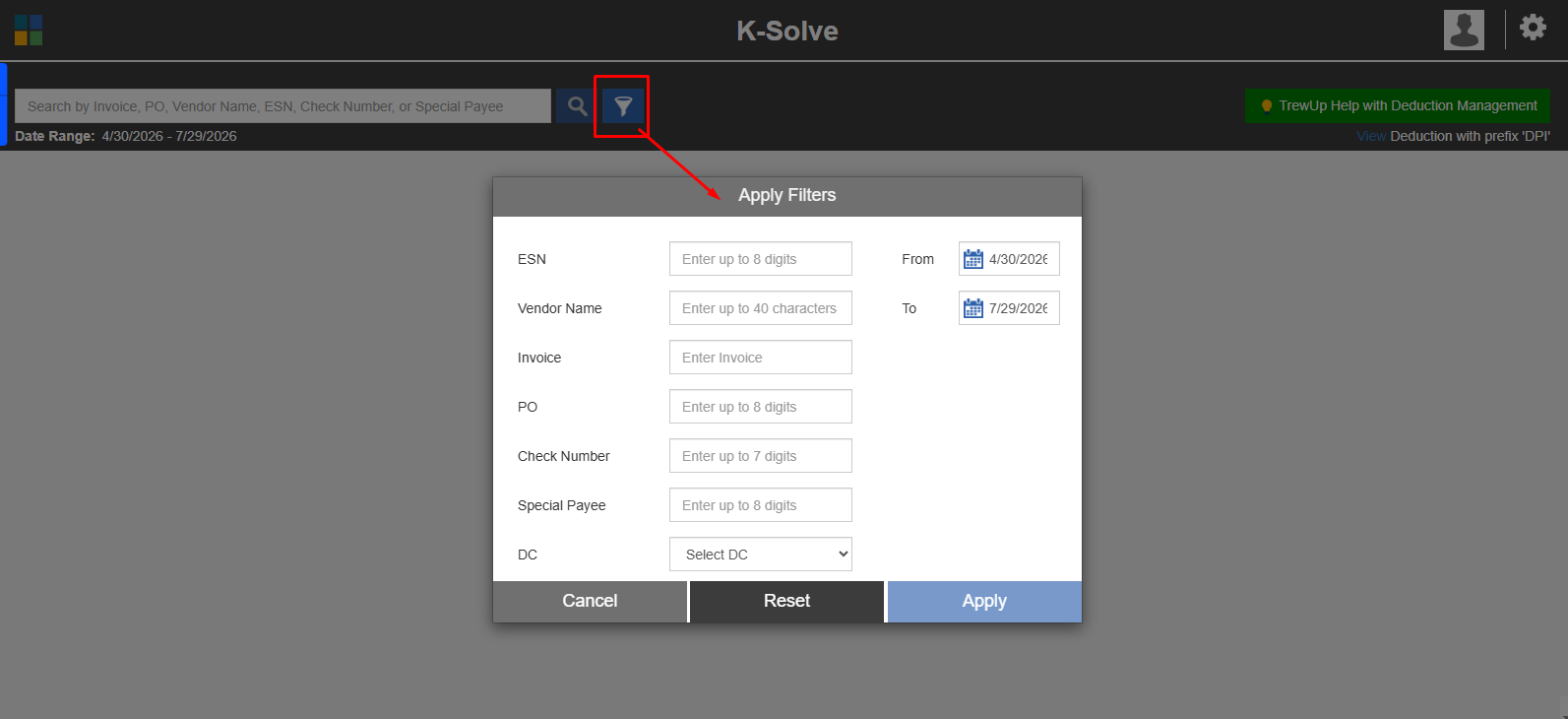
For older transactions, click the funnel icon next to the search bar. This opens the Apply Filters pop-up, where you can filter by:
-
ESN (up to 8 digits)
-
Vendor Name (up to 40 characters)
-
Invoice
-
PO (up to 8 digits)
-
Check Number (up to 7 digits)
-
Special Payee (up to 8 digits)
-
DC (distribution center)
Critically, you can extend the From date to view up to 2 years of historical detail. If you need to audit a deduction from eighteen months ago, this is how you surface it.
Sorting the Grid
Each column header has a funnel icon. Clicking it opens a "Show records that:" filter box where you can enter specific values and click Filter. Sorted columns display a blue filter icon, and you can filter multiple columns simultaneously.
You can also drag column headers into the gray grouping bar to group the grid by that field. Close any grouping by clicking the X on each blue box.
Exporting to Excel
Once you have the view you need, click the Export button in the upper right. The grid downloads as an Excel file. Depending on your browser, follow the on-screen prompts to save the file.
Reading the K-Solve Transaction Grid
The rightmost column of the grid contains three actionable icons. Learning their states saves hours of back-and-forth with KeHE support.
|
Icon |
Visual State |
What It Means |
|
Document |
Blue page icon present |
Backup documentation is attached. Click to download files. KeHE retains this backup for up to 2 years. |
|
Dispute |
Blue = no dispute attached; Red = dispute already submitted |
Blue means you can add a dispute. Red means the line is already under review. |
|
Notes |
White background = empty; Blue circle around icon = has notes |
Click to add a note (250 characters max) or view existing notes. Newest notes appear at the top. |
Important note: All comments entered during the dispute process are automatically added to the notes log, so the transaction history stays centralized even if multiple team members touch the account.
Common KeHE Deduction Types
KeHE organizes deductions into four major buckets. Knowing which bucket a charge falls into determines whether you should dispute it, absorb it, or escalate it to your Supplier Manager.
|
Category |
Definition |
Examples |
|
KeHE Fees |
Charges originating from KeHE programs and policies |
CONNECT BI allowance, payment terms, promotional processing fees (MCB/EP), ads/publications, non-compliance fines |
|
Unsaleables |
Charges related to product that cannot be sold |
Warehouse spoils, retailer store spoils (retailer name often appears on invoice), customer spoilage allowances, supplier returns |
|
Invoice Adjustments |
Corrections to the invoice so it reflects accurate payment |
Missed allowances, price or quantity discrepancies between PO and invoice |
|
Retailer Deductions |
Charges passed through from retailers, with KeHE acting as processing agent |
Promotions (MCB fees apply) and pass-throughs like slotting, ads, coupons, scans (EP fees apply) |
Related article: Managing Deductions on KeHE Supplier Portal with iNymbus
Retailer Deductions: Promotions vs. Pass-Through
Promotions (MCB fees apply):
-
National MCB (manufacturer charge back) promotions
-
Custom retailer promotions submitted through KeHE
-
Retailer EDLP submitted through KeHE
Pass-Through Deductions (EP fees apply):
-
Placement/slotting
-
Ads
-
Coupons
-
Scans
-
Store credits (spoils)
EP fee structure:
|
Component |
Detail |
|
Rate |
8% of the retailer's submitted invoice value |
|
Minimum charge |
$35 per event |
|
Maximum cap |
$700 per event |
|
Flat fee? |
No. It is not a flat $35 per deduction. |
How to Submit a Dispute in K-Solve
Disputing through K-Solve is straightforward, but the quality of your submission determines how fast KeHE resolves it.
Step-by-step:
-
Locate the transaction in the K-Solve grid.
-
Click the blue dispute icon in the rightmost column.
-
Select a Dispute Type from the dropdown.
-
Enter a detailed description in the Description/Comments field (up to 500 characters). Be specific. Reference the policy, the PO, or the backup document that proves the error.
-
Attach any relevant files using the Add Files button.
-
Click Submit.
What happens next:
-
The Vendor Connections Team receives an automatically generated email with your supporting documentation.
-
You receive an acknowledgment email with an assigned ticket number.
-
Allow up to 3 weeks for KeHE's response.
-
Whenever you email Vendor Connections for updates or additional information, include the ticket number in the subject line.
Pro tip: For pass-through deductions that came from a retailer, obtain supporting information from your KeHE Account Manager before you submit the dispute. The more detail you attach, the faster the resolution.
Recent Changes Suppliers Should Know
KeHE has made two structural changes to how deduction backup is delivered:
-
Legacy database migration: Billing and deduction backups are transitioning from KeHE's legacy database directly into KeHE CONNECT Supplier. This eliminates the risk of missing backup files and improves accuracy.
-
Excel replaces PDF: Suppliers now receive deduction backups in Excel format rather than PDF. This makes sorting, filtering, and reconciling far easier.
Important: Always review the second tab of the Excel file for additional deduction details.
Additionally, KeHE has partnered with TrewUp as its official deductions management partner. TrewUp integrates directly with K-Solve to automate retrieval, interpretation, and categorization of deductions.
Where Automation Tools Like iNymbus Fit In
K-Solve gives you a window into deductions. It does not eliminate the manual work of reviewing hundreds of lines, gathering backup across multiple invoices, or drafting dispute language at scale.
That is where automation platforms like iNymbus become relevant. While TrewUp is KeHE's official partner, tools like iNymbus can operate as a complement or alternative for suppliers who need:
-
Bulk categorization of deduction types across thousands of lines
-
Automated backup gathering from multiple retailer portals
-
Drafting and filing disputes at volume rather than one-by-one in K-Solve
-
Faster reconciliation workflows that sit on top of KeHE's native data
The distinction matters: K-Solve is KeHE's system of record. Automation tools do not replace it; they reduce the manual burden of feeding it.
Conclusion
K-Solve is not just a deduction viewer. It is a dispute engine, a backup library, and a communication log rolled into one grid. Suppliers who master the search filters, understand the four deduction buckets, and submit disputes with clean documentation recover revenue faster than those who treat the portal as a read-only statement.
Your next step: Log into KeHE CONNECT Supplier, navigate to Sales Orders > Credits > K-Solve, and audit your last 90 days. If you find a red dispute icon you do not recognize, or a blue one you have been ignoring, now you know exactly how to handle it.